

Refloom
Roger Mering Mejer · Graphics & Design
Independent analytics for this App Store listing. AppTracker is not affiliated with Roger Mering Mejer.
Chart standing · US
What changed · US
Listing changes AppTracker has observed for this app in this storefront — new versions, price moves, rating shifts, and store copy.
Refloom 2.0 brings your tattoo and art preparation into one project. • Preserve your original file and color profile, choose one shared crop and artwork size, and save named variants, tags and favorites. • Share editable .refloom projects with their saved studies, photos, notes and variants. • Keep the adjusted Colorzones legend, selected colors and mixing targets consistent. Brushstrokes retain their saved zone colors. • Prepare stencils with separate contour and tone layers, local corrections, Pencil-only drawing and stabilization. • Preview placement on a client photo with scale, rotation, mirror, opacity and shape adjustments. • Measure a two-axis 100 mm print proof, record your printer setup and apply a scale correction. • Align a work-in-progress photo and compare it with your reference at shared zoom. • Record actual paint trials with tubes, proportions, surfaces, wet/dry photos and notes. • Focus your brush study, inspect stroke width against artwork dimensions and use full-screen work mode. • Share a matching production set of PDFs, a notebook worksheet and separate stencil PNGs. Available in English, Dutch and Spanish.
In-app purchases · US
No in-app purchases.
Screenshots


Similar apps
Competitors and close alternatives, as estimated by AppTracker.


About
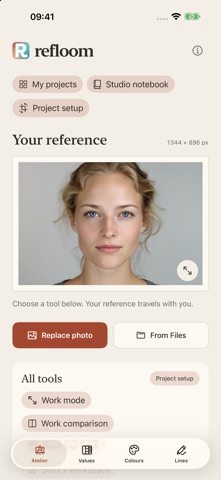
Your reference. Your materials. Your decisions. Refloom gives tattoo artists, painters and drawing artists a practical studio for working from photos. Study light, color and shape, prepare a stencil or painting reference, and keep your choices together as the work develops. PREPARE YOUR NEXT TATTOO Create an adjustable line study with separate contour and tone layers. Make local stencil corrections with erase, restore and drawing tools. Use optional Pencil-only input and line stabilization, then export transparent stencil layers. Preview your corrected stencil on a client photo. Move, scale, rotate, mirror and adjust its shape and opacity before sharing the placement preview. SEE COLOR AND BRUSH DIRECTION Explore light and dark with a value study. Simplify your reference into Colorzones, sample a color and inspect a larger swatch. The adjusted legend, selected color and mixing target follow the same digital colors. Build a brush study with adjustable stroke direction, size and density. Choose a focus area, edit individual strokes and relate stroke width to your artwork dimensions. Strokes keep their saved Colorzones colors. WORK WITH YOUR OWN PAINTS Choose a built-in palette or save your own paints in Mixing Studio. Get a starting recipe in relative parts, with the target beside an estimated result. Keep a personal paint trial book with the actual tubes, proportions, medium and surface you used. Add wet and dry photos and notes, then reuse recipes you have tested. COMPARE AS YOU WORK Align a photo of a flat artwork using four corners and its actual dimensions. Compare it with your reference side by side or by switching views, with shared zoom and position. Use full-screen work mode to keep a study beside your artwork. KEEP THE PROJECT TOGETHER Preserve your original import and color profile. Choose a shared crop and artwork dimensions, save named independent variants, and find projects with tags, search and favorites. Share editable .refloom projects with their saved studies, photos, notes and variants. PLAN AND CHECK YOUR PRINT Set dimensions, preview a single-page or tiled layout and use overlap guides. Record the printer, paper and output route, measure a 100 mm proof in both directions and apply a scale correction when needed. Check the assembled print before use. Share a production set of matching reference, line, value and color PDFs, an optional saved brush study, a notebook worksheet and separate stencil PNGs. ON YOUR DEVICE Photo analysis and saved work stay on your device. No account is required. Sharing happens when you choose it. Available on iPhone and iPad in English, Dutch and Spanish. Paint mixing suggestions are starting estimates for opaque oil and acrylic paint; test with your own materials. A placement preview is a visual aid, not a guarantee of physical size on curved skin. Printer settings and measured test prints determine final print size.
What's new · 2.0
Refloom 2.0 brings your tattoo and art preparation into one project. • Preserve your original file and color profile, choose one shared crop and artwork size, and save named variants, tags and favorites. • Share editable .refloom projects with their saved studies, photos, notes and variants. • Keep the adjusted Colorzones legend, selected colors and mixing targets consistent. Brushstrokes retain their saved zone colors. • Prepare stencils with separate contour and tone layers, local corrections, Pencil-only drawing and stabilization. • Preview placement on a client photo with scale, rotation, mirror, opacity and shape adjustments. • Measure a two-axis 100 mm print proof, record your printer setup and apply a scale correction. • Align a work-in-progress photo and compare it with your reference at shared zoom. • Record actual paint trials with tubes, proportions, surfaces, wet/dry photos and notes. • Focus your brush study, inspect stroke width against artwork dimensions and use full-screen work mode. • Share a matching production set of PDFs, a notebook worksheet and separate stencil PNGs. Available in English, Dutch and Spanish.
Details