

Easy Albums
kitamura hira · Photo & Video
Independent analytics for this App Store listing. AppTracker is not affiliated with kitamura hira.
Chart standing · US
What changed · US
Listing changes AppTracker has observed for this app in this storefront — new versions, price moves, rating shifts, and store copy.
Price & rating history · US
Reconstructed from the listing changes AppTracker has observed in this storefront. A field is charted once it has changed more than once, and each line starts at the value it moved from.
Price · Free now · 2 changes on record
In-app purchases · US
No in-app purchases.
Screenshots
Keywords this app targets
Search terms AppTracker associates with this app — estimates, not search volume. ❝ = in the app's title; a highlighted number is its current position for that term.
Similar apps
Competitors and close alternatives, as estimated by AppTracker.


About
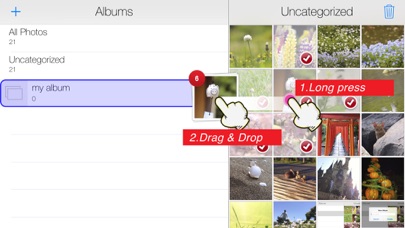
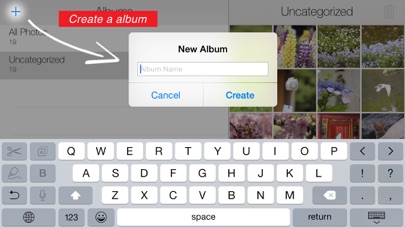
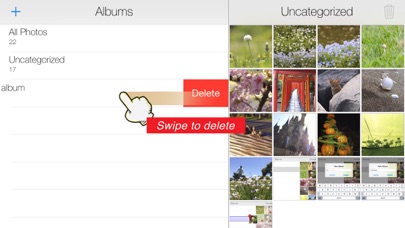
This is an app designed specifically for organizing photos on iOS. It’s very easy to use — after creating an album, you just need to drag your photos into it. In addition to categorizing photos, the app can also find duplicate or similar images. Of course, you can also rename or delete albums as needed. There are no ads or in-app purchases, and it doesn’t require an internet connection. The entire app is only about 3 MB in size. It supports both iPhone and iPad, as well as both landscape and portrait orientations. Using it in landscape mode is recommended. [Features] - Create a new album Tap the “+” button in the upper-left corner to open the new album creation screen. Enter any name you like. - Delete an album Swipe left on the album you want to delete to display the “Delete” button. - Change Album Name Swipe right on the album you want to rename, and a “Rename” button will appear. Enter the new name and save. - Organize photos with drag & drop Select the photos you want to organize and long-press one of them. When the photo pops up, move your finger to drag it. Release it over the album you want to add it to, and the photo will be placed in that album. - Delete photos First, select the photos you wish to delete. After selecting them, tap the “trash bin” icon in the upper-right corner to display the delete confirmation screen. - Remove photos from an album Select the photos you want to remove. After selecting them, tap the “minus circle” icon in the upper-right corner. - Managing similar or duplicate photos: After selecting a photo, tap the “flag” icon, then choose a search method as needed. Once similar or duplicate photos are found, a list will be displayed. You can triple-tap a thumbnail to enlarge it and compare the images. [Note] Deleting a photo within an album does not actually delete the photo itself—it only removes it from that album. Therefore, deleting an album will not delete any photos; it only ungroups them. Only the photos in the default folders “All Photos” and “Ungrouped” are physically deleted when removed. Dragging photos into a custom album only groups them; it does not copy them. So if the original photo is deleted, it will also disappear from any group it belonged to. Please do not use groups as a backup method for your photos. The grouping feature in this app is linked with the iOS system Photos app, so any changes made in the system Photos app will also be reflected in this app.
What's new · 5.1
-You can now delete photos directly in an album - Improved sorting - Bug fixes and UI tweaks
Details