
Chart standing · US
What changed · US
Listing changes AppTracker has observed for this app in this storefront — new versions, price moves, rating shifts, and store copy.
Screenshots



About
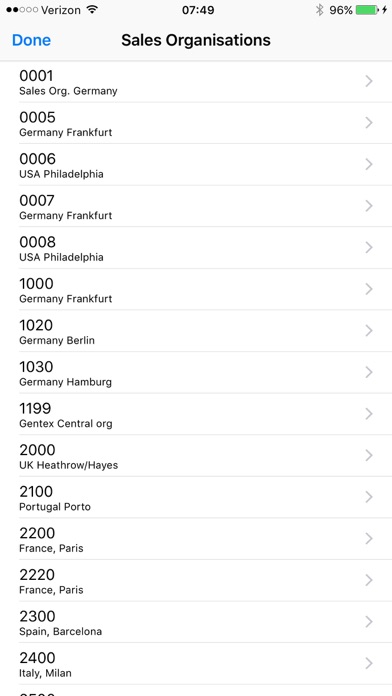
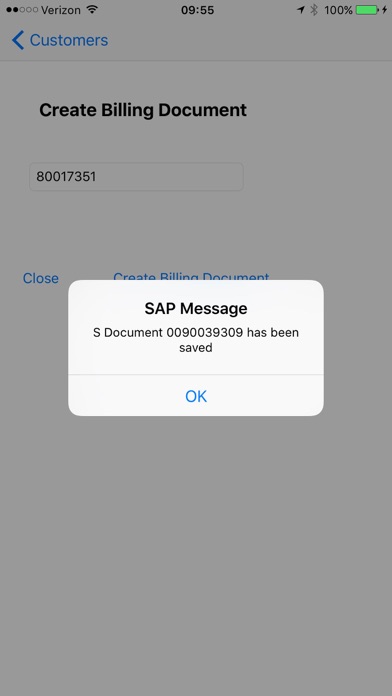
SAP Order to Cash is SAP Sales App that allows users to Create Sales Order, Delivery. SAP Order to Cash Mobile App is based on SAP IDES 7.3 system at the back end, For a detail explanation of the app see the url. To use the app the steps are as follows 1) Download and install the App. 2) The App is configured to a SAP System - you cannot change this. The configuraiton option is provided in the case you want this app to point to your System. If this case you have to send email to smvmobile2014@gmail.com. 3) Use the Login Option - username: test2test password test2test. 4) A List of Sales organization are listed - Select Sales Org 3000 (US) 5In the next Screen a List of Distribution Channels are displayed - Choose 10 6) A List of Divisions are displayed - choose 00 7) A List of Customers belonging to 3000, 10,00 are displayed 8) Choose Customer 3251 9) Click + button to create sales order A) Post Sales Order - Choose Order type = OR, Sales Group 301, Sales Office 3000 - Purchase order - Any PO number, Select Plant from Drop down (choose 3000), Click on Add Line Items Button For Article Enter M-08 For Quantity 10 (minim 10) Unit of Measure = ST ( only ST) Click on Save SO Material Button and then back Screen and choose Create Sales Order Button and note the Sales Order Displayed on the message popup. Only one Sales order line is supported. B) Post Delivery - After Selecting the customer click on the Left icon (bag icon) to see a list of sales order) - Select a Sales order - Select a line and then enter quantity Delivery Quantity ( any quantity less then or equal to quantity in A such as 1 Unit of Measure ST Click on Post Delivery and make a note of the Delivery number displayed in the message C) Post Billing Choose the Right Icon(Till icon) and enter the Delivery Number - Enter the Delivery number created in B and Click the Button to Create Billing Document. This is Order to Cash Process from mobile
What's new · 1.3.1
Minor upgrade for exception processing when the SAP Service is down
Details