

GESTO: Gesture Launcher
Hebbian AI Co., Ltd. · Productivity
Independent analytics for this App Store listing. AppTracker is not affiliated with Hebbian AI Co., Ltd.
Chart standing · US
Screenshots



About
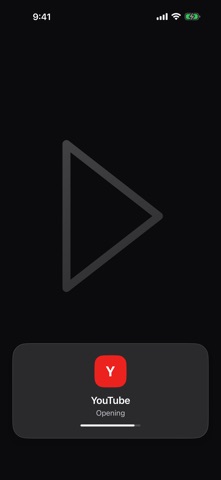
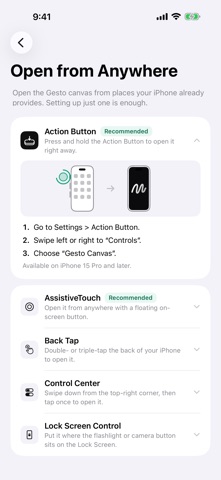
Draw a shape, and the app opens instantly. No more hunting through home screen pages. Open the drawing canvas from anywhere: AssistiveTouch, the Action Button, Back Tap, Control Center, or the Lock Screen. Works with about 270 popular apps and your own shortcuts. Available in English and Korean. HOW IT WORKS 1. Create a gesture: pick an app or shortcut, then draw an easy-to-remember shape three times. 2. Open the canvas: use AssistiveTouch, the Action Button, or the GESTO control in Control Center or on the Lock Screen. 3. Draw: draw your saved shape and the app opens right away. OPEN FROM ANYWHERE • AssistiveTouch: tap the floating on-screen button once. • Action Button: press and hold to open the canvas. • Back Tap: double- or triple-tap the back of your iPhone. • Control Center and Lock Screen: add the "Gesto Canvas" control. • Shortcuts and Siri: "Open GESTO canvas" The in-app "Open from Anywhere" guide shows only the methods your iPhone supports, recommended ones first. OPENS WHAT YOU USE • About 270 popular apps for messaging, video, maps, shopping, finance, food delivery, AI, and more • Run your own shortcuts from the Shortcuts app by name. Apps that aren't in the list can be connected with an "Open App" shortcut. • Multi-stroke shapes are recognized, and GESTO warns you when a new gesture looks too similar to an existing one. MAKE IT YOURS • Adjust stroke width, stroke style, smoothing, and how long GESTO waits after you lift your finger. • Supports Dark Mode and larger text sizes. Contact: hebbianai@gmail.com
What's new · 1.0.1
• Opening from AssistiveTouch, the Action Button, or Control Center shows the drawing screen right away, and the first stroke you draw is captured. • Setup now shows how to connect Open from Anywhere right away, and the connect card stays on Home until you've connected. • When several gestures look alike, you can pick the one you meant instead of one opening right away. • Deleted a gesture by mistake? Undo brings it back. • Renaming a gesture on its detail screen now sticks even without pressing Return. • Closing the drawing screen while it waits after a stroke no longer opens anything. • Fixed the filter, search field, and title overlapping when pulling down at the top of the list. • The Open from Anywhere guide now starts with AssistiveTouch, which every iPhone has. • Fixed a crash when creating a gesture on iOS 18.
Details