

.Cast
KOTETSU, Corp. · Photo & Video
Independent analytics for this App Store listing. AppTracker is not affiliated with KOTETSU, Corp.
Chart standing · US
Screenshots

About
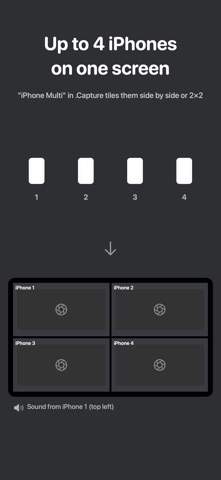
.Cast sends your iPhone's screen and audio to .Capture, a video capture app for Mac, over your local network. It is a sender only. When an iPhone is used as a camera on a film, commercial or TV set, .Cast lets you put the camera app's monitoring screen — waveform, focus assist, frame lines and all — on the director's and client monitors. ONE TAP TO START Open .Cast, tap the red REC button and start the broadcast from the iOS menu. Then open the camera app you shoot with. Whatever is on the iPhone's screen appears in .Capture. A REAL INPUT IN .CAPTURE In .Capture the phone shows up as an input ("iPhone · name", set in .Cast) and can be previewed, recorded and sent to SDI like any other camera. With several phones, "iPhone Multi" shows up to four side by side. BUILT FOR THE SET - Hardware H.264 encoding on the device (1920 px long edge, about 10 Mbps), tuned for low latency - Orientation: Auto / Port Right / Port Left / Portrait. Fixing it is more reliable on a rig, and it can be changed while broadcasting - Audio: the microphone when it is on, otherwise the app audio - Lists the .Capture Macs nearby, and tells you what to check when none is found NOTHING LEAVES YOUR NETWORK Video and audio go straight to the Mac on your local network. No internet, servers or cloud. No account, login, purchases, ads, analytics or tracking. HOW TO USE 1. Update .Capture on your Mac to the latest version and launch it 2. Join the iPhone and the Mac to the same Wi‑Fi 3. In .Cast, tap REC, choose .Cast and start the broadcast 4. In .Capture, choose the iPhone under INPUT Requires .Capture for Mac as the receiver (https://capture.kotetsu.work). The whole screen is sent, including notifications — turn on a Focus mode while broadcasting. .Cast is not for mirroring to TVs or external displays.
Details