
Chart standing · US
What changed · US
Listing changes AppTracker has observed for this app in this storefront — new versions, price moves, rating shifts, and store copy.
Price & rating history · US
Reconstructed from the listing changes AppTracker has observed in this storefront, so each line starts at the first change on record.
Price · USD
Screenshots




About
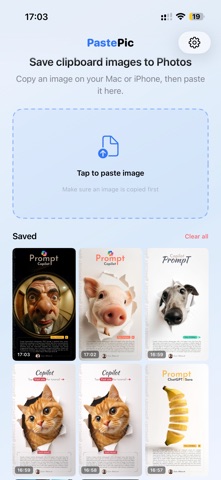
Copy on your Mac. Paste on your iPhone or iPad. Save directly to Photos. PastePic gives images in your clipboard a fast path into the Photos app. Copy a screenshot, design, QR code, AI-generated image, or any other picture on your Mac. Then open PastePic on your iPhone or iPad, tap Paste & Save, and the image is added to Photos. No email attachments. No cloud drive. No messages to yourself. No temporary files to clean up. HOW IT WORKS 1. Copy a screenshot or image on your Mac. 2. Open PastePic on your iPhone or iPad. 3. Tap Paste & Save. 4. Find the image in Photos. BUILT FOR YOUR APPLE DEVICES PastePic works with Universal Clipboard to access images copied on a nearby Mac. It is useful for screenshots, design mockups, social media assets, AI-generated images, QR codes, documents, and any visual you want available in your iPhone or iPad photo library. You can also use PastePic to save images copied directly on your iPhone or iPad. PRIVATE BY DESIGN • Images are handled on your device • No account or sign-in required • No cloud uploads • PastePic only requests permission to add new images to Photos • PastePic cannot view, edit, or delete your existing photo library • Clipboard content is accessed only when you choose to paste REQUIREMENTS Moving clipboard content from Mac requires Universal Clipboard. Your devices must support Handoff, use the same Apple Account, have Wi-Fi and Bluetooth enabled, and be near each other. Privacy Policy: https://duocnguyen.dev/privacy-policy
Details