

Site Reporter: PDF Reports
Moeki Kozawa · Business
Independent analytics for this App Store listing. AppTracker is not affiliated with Moeki Kozawa.
Chart standing · US
What changed · US
Listing changes AppTracker has observed for this app in this storefront — new versions, price moves, rating shifts, and store copy.
Photos in the "Other" category can now have a name of your own (e.g. Replaced parts). - The name appears in the photo list and on the report (PDF) instead of "Other" - Names you've used before can be added with a tap Fixed PDFs saved from the print screen getting a doubled ".pdf" in the file name.
In-app purchases · US
What this app sells inside itself, grouped by kind and priced for this storefront.
Screenshots




Keywords this app targets
Search terms AppTracker associates with this app — estimates, not search volume. ❝ = in the app's title; a highlighted number is its current position for that term.
Similar apps
Competitors and close alternatives, as estimated by AppTracker.
 Handover: Client Reports
Mathieu Bolard
Handover: Client Reports
Mathieu Bolard
 AuditBricks: Site Audit Report
Raghvendra Bhargava
AuditBricks: Site Audit Report
Raghvendra Bhargava
 Site Report Pro+ Punchlist App
Pipe Flow Software
Site Report Pro+ Punchlist App
Pipe Flow Software
 Site Survey Pro
Orion GLE LTD
Site Survey Pro
Orion GLE LTD
 Sitewise - Site Visit Reports
Ryan Ghods
Sitewise - Site Visit Reports
Ryan Ghods
 Condition Photo Report Studio
Gobling Company
Condition Photo Report Studio
Gobling Company
 DepositProof: Rental Report
Matvii Kaushynskyi
DepositProof: Rental Report
Matvii Kaushynskyi
 AQL Pocket Inspector
Marcus Lam
AQL Pocket Inspector
Marcus Lam
About
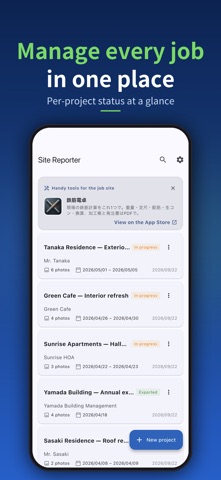
[Sound familiar?] - Photos pile up on your phone and turning them into a report takes forever - Tweaking Excel layouts every time eats into your day - You want a clean handover that shows your work to the client - Most management apps are too heavy for a small crew Site Reporter turns site photos into a polished PDF report — straight from your phone. Shoot, comment, pick a layout, generate the PDF, share. That's it. [Highlights] - 6 report layouts (Standard / Before-After / Inspection / Photo Album / Issue Summary / Photo Ledger) - Photo ledger: a cover page (project, work period, contractor) plus 3 numbered photos per page — the customary construction photo-ledger format (Pro) - Blackboard stamp: overlay a chalkboard-style stamp (project, work type, date, memo) on photos; the original photo stays untouched - Automatic serial numbers (No.1, No.2, ...) that follow your photo order - Tag each photo as Before / During / After / Issue / Other - Per-project photo management - One-tap project duplication, with photos reusable across sites - Save frequent comments as one-tap snippets - One-tap PDF generation and sharing - Per-project export history - Rename report fields (Project, Before/After, photo ledger labels and more) for inspection, cleaning or general reports - Photo date and time: add the shooting date (or date and time) to the corner of each photo in the PDF — photos from your camera roll keep the time they were taken (the original photo is untouched) - Add or remove blackboard stamps on every photo in a project at once - Rotate or replace photos, zoom in full screen, and print one large photo per page (except the photo ledger) - Customer, location and staff names you've entered before appear as one-tap suggestions - Before / After: set a photo's category to Before or After and the PDF shows them side by side (paired in the order you arrange them). Select several photos to set their category at once - Drag to reorder photos — the PDF follows the same order - iPhone and iPad: with Pro, iCloud sync keeps your projects in step on both devices (no sign-in required) - Embed your company logo in PDFs (Pro) [Great for] - Sole-prop renovators, exterior painters, roofers - House cleaning and janitorial businesses - Property condition reports, move-out reports - Building and equipment inspections - Showing clients a clear before / after [Privacy and offline use] Your data stays on your device and never goes to our servers (with iCloud sync on, it is kept in your own iCloud). No logins, no ads, no required network. Anonymous usage analytics and crash diagnostics can be turned off in Settings. [Pricing] The free version covers up to 3 projects. The Pro upgrade (one-time, no subscription) removes the project limit and the PDF watermark, unlocks all 6 templates including the photo ledger, and adds the company-logo feature. One payment, lifetime use. A simple report tool that fits on your phone.
What's new · 1.1.13
Photos in the "Other" category can now have a name of your own (e.g. Replaced parts). - The name appears in the photo list and on the report (PDF) instead of "Other" - Names you've used before can be added with a tap Fixed PDFs saved from the print screen getting a doubled ".pdf" in the file name.
Details