

Shy Camera: Cute Photo Resizer
Kenichi Ando · Photo & Video
Independent analytics for this App Store listing. AppTracker is not affiliated with Kenichi Ando.
Chart standing · US
What changed · US
Listing changes AppTracker has observed for this app in this storefront — new versions, price moves, rating shifts, and store copy.
2.0.1 brings a new look and three new ways to bring a photo in. A NEW LOOK An iridescent background, a pearl-studded frame, and scattered stars and hearts. Not just the opening screen: placement, editing and settings all share the same feel now. SHY CAMERA Taking a photo in a quiet place can feel awkward. This is a way to shoot for exactly that feeling. - A timer of 3, 5 or 10 seconds, with the count shown large on screen - Burst from 1 to 30 shots, then pick the expression you like best - After shooting you see the result first, and choose Use or Retake - Timer and burst settings are remembered, so you set them once A FRAME FROM A VIDEO Turn a moment from footage you already have into a photo. Drag along a strip of frames and pick what you want by eye. THE CANVAS RATIO IS CHOSEN FOR YOU Whichever of 1:1, 4:5, 9:16 or 3:4 fits your photo best is selected on load. You can still change it with one tap. SAVE NOW GOES TO PHOTOS It used to open the Files app. Save now puts the photo straight into Photos. Long press Save to choose Files or iCloud Drive instead. FIXES - Closing without saving or sharing now asks first. A photo taken in the app is not kept on the device, so closing by mistake lost it - Two settings buttons appeared on the opening screen - Settings now sits at the top left on every screen - The opening text could be hidden behind the ad
Screenshots


About
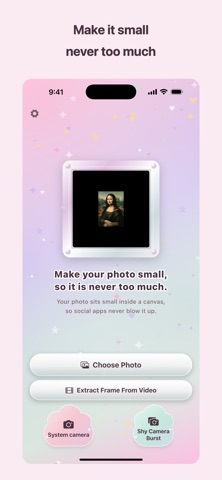
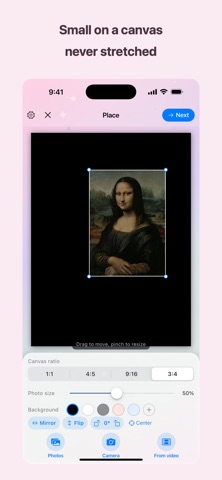
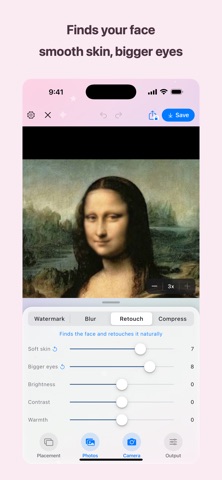
Sending a photo of yourself, or posting one. Have you ever felt a little shy about how big it shows up, filling the whole screen? Shrinking it does not help. Social apps stretch every image back up to their standard size, so a shrunken photo comes out rough and blurry. You only wanted to be modest, and it stands out more than ever. Shy Camera places your photo small inside a canvas and turns the whole thing into one image. What gets stretched is the canvas. Your photo stays small and sharp, at the size and position you chose. ■ Good for - A profile picture for social apps, at a modest size - A face photo beside an introduction in a group - A seller photo for a listing, not too big - Kids or pets with a margin, not edge to edge ■ Three steps 1. Choose a photo or take one on the spot 2. Set its position and size on the canvas and tap Next 3. Retouch if you like, then save Pinch to zoom, or use the buttons at the bottom right, up to 3x. ■ Place Your photo appears on the canvas at 50% size, centered. - Drag to position it. It never leaves the canvas - Pinch to resize, from 10% to 100% - Canvas ratio 1:1, 4:5, 9:16 or 3:4, to match where you post - Background: black, white, grey, pink, light blue, or any color - Mirror, flip, and rotate in 15-degree steps - "Center" resets position, size and rotation at once - Tap Next to compose. "Placement" brings you back ■ Four ways to bring a photo in Choose Photo: pick from your library. System camera: the best quality. Shy Camera: for shooting in a quiet place without feeling awkward. A 3, 5 or 10 second timer, and burst from 1 to 30 shots, so you pick the expression you like best. Quality is below the system camera. Extract a frame from a video: pick a moment from footage you already have, by eye, from a strip of frames. The canvas ratio is chosen to fit your photo. You can change it with one tap. ■ Four tools for the finished image Retouch Finds the face and lets you smooth the skin and enlarge the eyes. Eyes, brows and lips stay sharp; only skin is softened, so it never looks fake. Detection runs on your device. Brightness, contrast and warmth are on the same screen and work without a face too. Watermark Add your name or handle so nobody reposts your photo as their own. Adjust size and opacity, drag it anywhere, or tile it over the whole image. A corner mark can be cropped away; a tiled one cannot. Blur Trace anything you want to hide: a sign, a nameplate, someone who walked into the shot. Only what you trace is blurred. Ten strength levels, checked on screen. Compress Make the file smaller for email or forms with a size limit. Move the quality slider and see the actual result and its file size right away. ■ Save and share "Save" puts the photo straight into Photos. Long press Save to choose Files or iCloud Drive instead. "Share" hands it to someone through the iOS share sheet: AirDrop, Mail, Messages and more. Closing before you save or share asks first: a photo taken in the app is not kept on the device. ■ Your original is safe, and nothing leaves your device No tool touches the original. The result is always a new image, drawn from scratch, so it carries no location, date or device information. No upload, no account, no sign-in: everything happens on your iPhone or iPad, even in airplane mode. ■ Japanese and English, iPhone and iPad, dark mode The app follows your device language. On iPad the controls stay in the middle, within reach. Dark mode is supported. ■ One-time purchase Placing, Retouch, Watermark, Blur, Compress and saving are all free. A single purchase unlocks the following. Nothing renews. - Sharing the finished image (AirDrop, Mail, Messages and more) - Tiling the watermark over the whole image - Removing the banner ad The price is shown by the App Store. "Restore Purchase" carries it to a new device. ■ Contact Questions and requests are welcome. https://tenmais.jp/contact/ Made by one person, and every message gets read.
What's new · 2.0.1
2.0.1 brings a new look and three new ways to bring a photo in. A NEW LOOK An iridescent background, a pearl-studded frame, and scattered stars and hearts. Not just the opening screen: placement, editing and settings all share the same feel now. SHY CAMERA Taking a photo in a quiet place can feel awkward. This is a way to shoot for exactly that feeling. - A timer of 3, 5 or 10 seconds, with the count shown large on screen - Burst from 1 to 30 shots, then pick the expression you like best - After shooting you see the result first, and choose Use or Retake - Timer and burst settings are remembered, so you set them once A FRAME FROM A VIDEO Turn a moment from footage you already have into a photo. Drag along a strip of frames and pick what you want by eye. THE CANVAS RATIO IS CHOSEN FOR YOU Whichever of 1:1, 4:5, 9:16 or 3:4 fits your photo best is selected on load. You can still change it with one tap. SAVE NOW GOES TO PHOTOS It used to open the Files app. Save now puts the photo straight into Photos. Long press Save to choose Files or iCloud Drive instead. FIXES - Closing without saving or sharing now asks first. A photo taken in the app is not kept on the device, so closing by mistake lost it - Two settings buttons appeared on the opening screen - Settings now sits at the top left on every screen - The opening text could be hidden behind the ad
Details